Data Handling
Part of AI meeting tools
Reviewing recording permissions before using a meeting bot
Check participant notice, host approval, auto-join, sharing and stopping controls before a meeting bot captures a call.
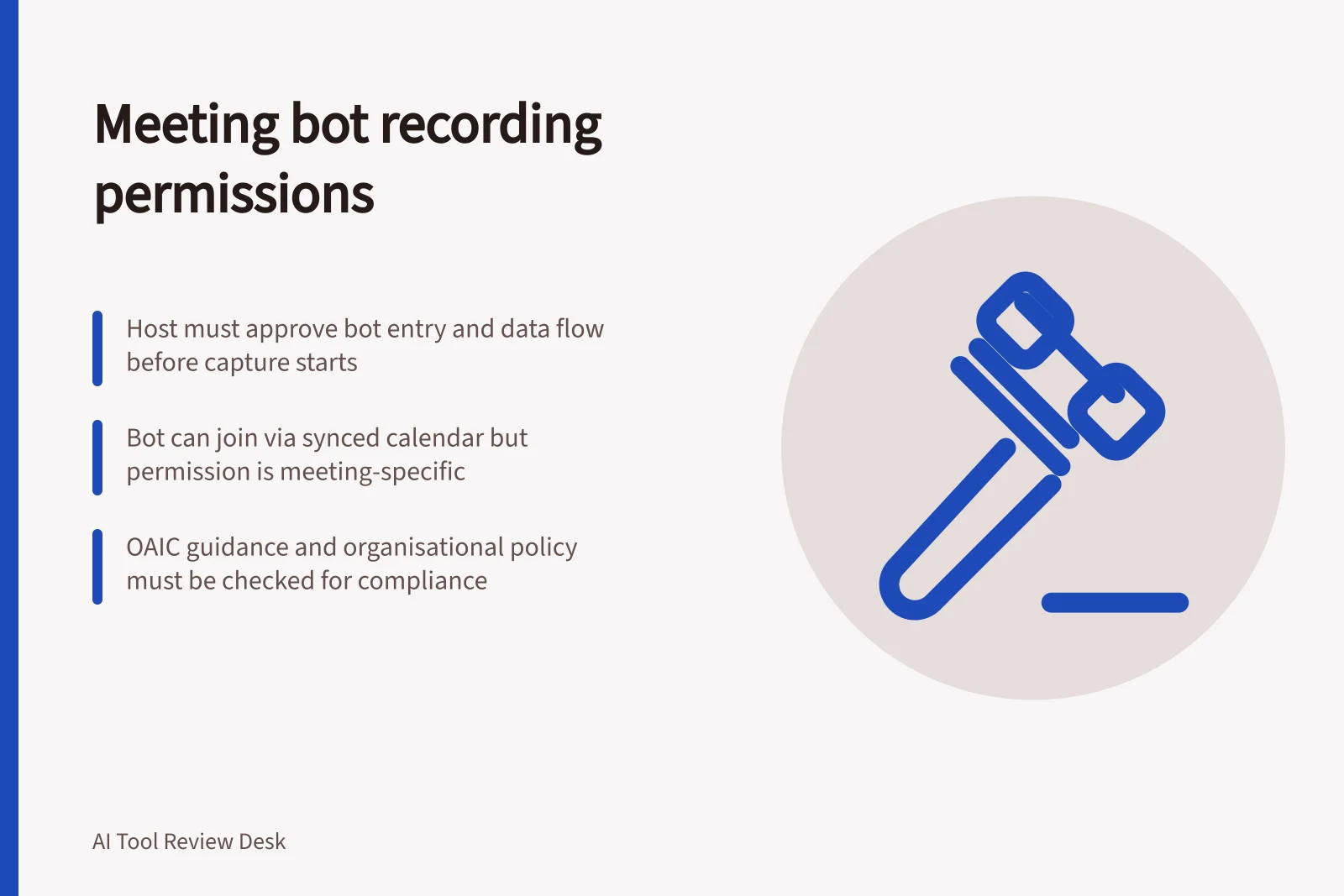
Before a meeting bot joins, establish who may authorise capture, what it will collect, who receives the output and how attendees can object. A calendar auto-join setting is a technical choice; it does not establish permission for every meeting on that calendar.
Decide whether the meeting can be captured
Identify the host, the organisations represented and whether personal or sensitive information may arise. Tell invitees what the bot will do and give them a practical way to object before capture starts. Human notes may be a better route for a discussion that should not be recorded or transcribed.
The OAIC publishes guidance on privacy and the use of commercially available AI products. Review it alongside your own privacy assessment when a bot may collect personal information.
Check applicable law, contracts and organisational policy for the actual participants and locations. General guidance does not replace a meeting-specific permission decision.
Check how the bot enters the call
Otter provides documentation on automatically adding Otter Notetaker to meetings and on removing it from Zoom, Google Meet or Microsoft Teams meetings. Review synced and recurring events, including those hosted by another organisation, before enabling any automatic addition.
Zoom AI Companion can also join eligible users' Google Meet and Teams meetings as a participant. The third-party feature depends on a connected calendar, an eligible account and administrator settings.
Zoom documents optional pre-meeting email notifications and consent notices for AI Companion during third-party meetings. Those notices do not replace a decision about permission before capture.
Confirm that the meeting host permits the bot, the host can admit it, and your organisation has approved the resulting data flow. If any condition is unclear, keep the bot out until it is resolved.
Check sharing and stopping before use
Ask the account owner to show the intended settings:
- Which meetings will the bot join, including recurring and externally hosted calls?
- Will it record audio, create a transcript, generate notes or combine these actions?
- Who can view, download or forward each output?
- How can capture be stopped, and what happens to material already collected?
- Who handles retention, deletion and corrections to a mistaken or sensitive record?
Otter documents how to remove Otter Notetaker from a Zoom, Google Meet or Microsoft Teams meeting. Removing the bot does not establish that earlier material has been deleted; inspect the record and apply the organisation's approved retention process.
Record the permission decision for the meeting type and the settings used. Recheck it when participants, subject matter or bot settings change. If someone objects or the basis for capture is uncertain, pause capture and use an approved alternative.