Meeting Tools
AI meeting tools
Choose an AI meeting workflow by the record you need, who can access it and the work required to check decisions and actions.
Choose an AI meeting tool by the record your team needs: live help during a discussion, a transcript to check what was said, or reviewed notes capturing decisions and actions. Decide who may start capture and who receives the result before comparing products. A fluent summary still needs checking before it becomes a record of a commitment.
Match the tool to the meeting
If someone must check the wording of a decision, they need an authorised transcript or another reliable record. If the next step matters most, reviewed notes may be enough. For a sensitive discussion, decide first whether any AI capture is appropriate.
Recording, transcription and AI notes can be separate controls. Check what the chosen setting creates, whether anything remains available after the meeting, and who can access it.
Documented workflows and pointers to other providers
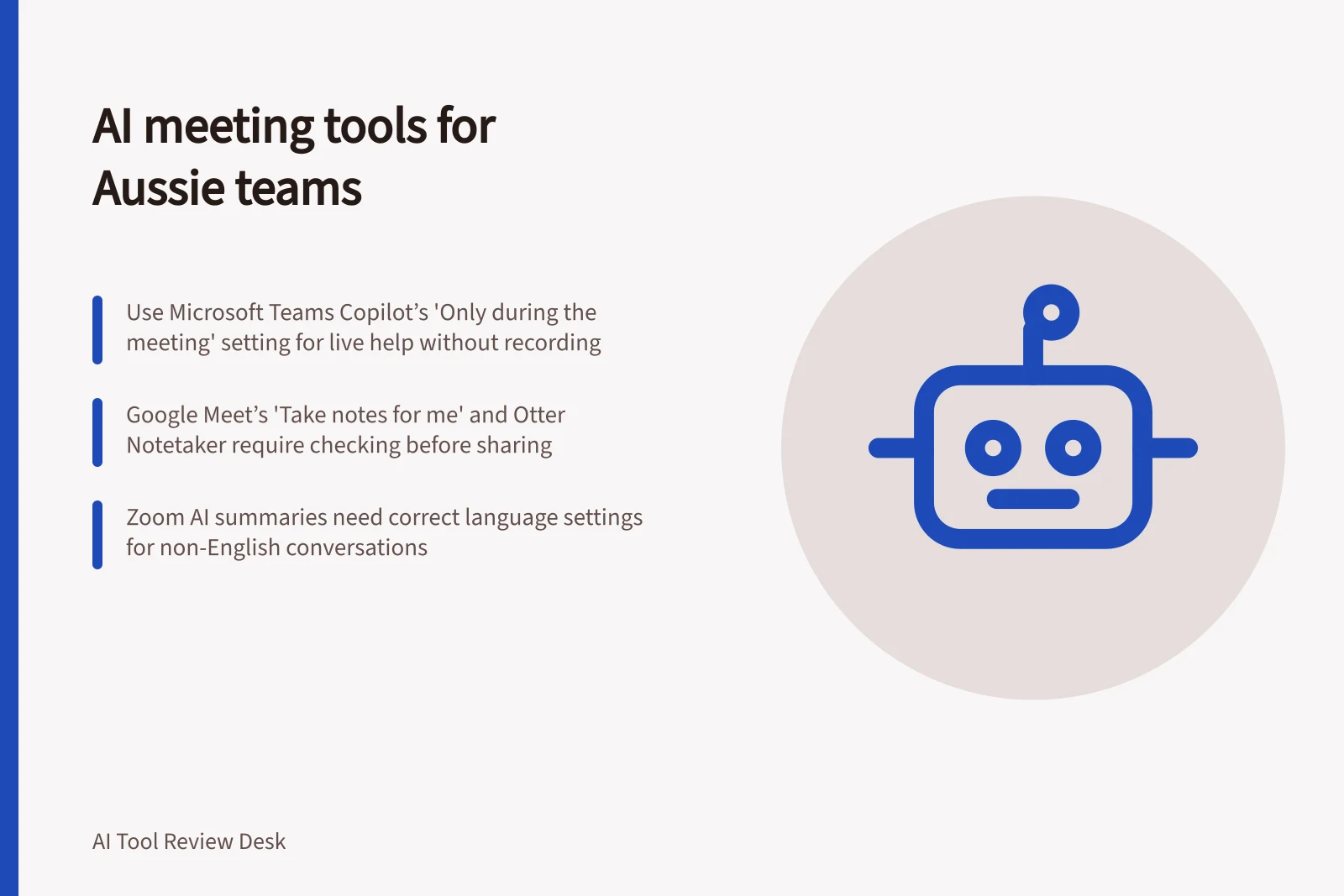
Microsoft Teams Copilot can provide notes and tasks during a meeting with its “Only during the meeting” setting, without turning on recording or transcription. Copilot will not be available in the meeting’s Recap tab afterwards unless transcription or recording was started.
Microsoft says prompts and responses may still be retained under the organisation’s Purview policies. If the “Only during the meeting” option is not available, Microsoft advises contacting the IT administrator. This route suits a team seeking live assistance, provided it separately arranges any record needed afterwards.
For a meeting where the team wants AI notes, Google Meet’s “Take notes for me” is a feature to assess. For a notetaker workflow, Otter’s “Otter Notetaker” is another option. Before using either, check current product documentation for how to enable it, what it produces and how sharing works; have a responsible person review notes before circulation.
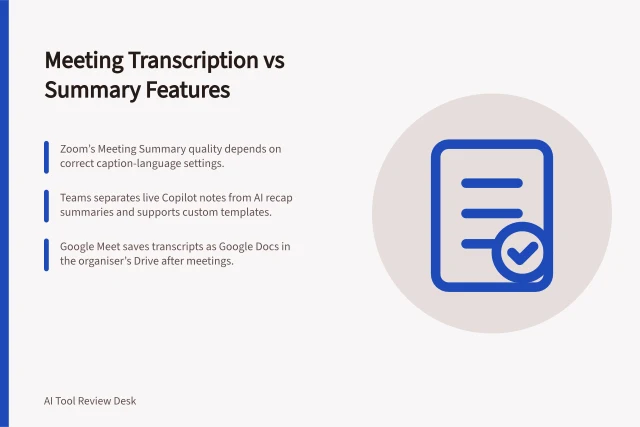
Zoom Meeting Summary with AI has a language setting to check. For conversations in languages other than English, Zoom says setting the caption language correctly helps AI translate speech and improves speech-to-text data quality for Meeting Summary.
If captions are disabled or have not been used before, English is chosen by default; if they have been used before, the previously used caption language is selected. If the selected spoken language does not match the language detected, Zoom says AI will adapt to the detected language.
For a scheduled Teams meeting, the organiser selects Calendar, opens the meeting, chooses Options, then selects “Only during the meeting” under Copilot and other AI before applying the change. During the meeting, select Copilot in the meeting controls and choose Turn on.
Teams calls have a different boundary: Copilot-only mode for calls must be enabled by an IT administrator, and Copilot is not available afterwards in the associated chat thread or Calls app history unless transcription or recording was turned on. Microsoft advises copying any Copilot content the team needs to keep before the call ends.
AI Meeting Tools: Key Features and Use Cases
- ToolMicrosoft Teams Copilot (Only during meeting)
- FeatureLive AI notes and tasks without recording or transcription
- Post-Meeting AccessNot available in Recap tab unless recording/transcription enabled
- Data RetentionPrompts and responses may be retained under organisation’s Purview policies
- SetupOrganiser selects 'Only during the meeting' in meeting options; turn on during meeting
- Note SharingManual copy required before call ends to retain content
- ToolGoogle Meet – Take notes for me
- FeatureAutomated AI-generated meeting notes
- Post-Meeting AccessNotes saved in meeting history if enabled
- Data RetentionDepends on Google Workspace admin settings and organisational policies
- SetupEnabled via meeting settings; requires user permission
- Note SharingShared via Google Drive or email with access controls
- ToolZoom Meeting Summary with AI
- FeatureAI-generated summary with language adaptation
- Post-Meeting AccessAvailable in Zoom meeting history and dashboard
- Data RetentionSubject to Zoom’s data retention policies and customer settings
- SetupSet caption language in meeting settings; AI adapts if mismatch detected
- Note SharingExportable as text, PDF, or shared within Zoom account
- ToolOtter Notetaker
- FeatureReal-time speech-to-text transcription with AI summarisation
- Post-Meeting AccessStored in Otter account with user-controlled sharing
- Data RetentionUser-defined; can delete or export data at any time
- SetupEnable in Otter app or integrate with calendar tools
- Note SharingLink sharing, email, or export to document formats
How to Enable AI Meeting Notes in Microsoft Teams (Only During Meeting)
- Open Calendar and create or edit a meetingAccess your Outlook calendar and schedule or open an existing meeting.
- Select Options and enable ‘Only during the meeting’Under meeting options, find Copilot and other AI settings and choose 'Only during the meeting'. Apply the change.
- Join the meeting and turn on CopilotDuring the meeting, select the Copilot icon in the meeting controls and choose Turn on.
- Review and copy content before endingCopy any needed notes or actions from Copilot before the call ends—content won’t appear in Recap unless recording was enabled.
Judge the result your team would use
Use an authorised, non-sensitive discussion with a known decision, an action owner and a qualification. Keep human notes as an answer key. For each eligible workflow, record the plan, settings and capture method, then check:
| Output | What to verify |
|---|---|
| Transcript | Wording, speaker turns and qualifications needed to check the record |
| Summary | Whether proposals, decisions and disagreements remain distinct |
| Actions | Whether each task, owner and timing is supported by the discussion |
| Handover | Whether the intended reviewer can access and correct the result without oversharing it |
Include the time needed to correct errors. A summary that assigns an action to the wrong person is not ready to circulate.
Key Considerations for AI Meeting Tools in Australian Context
- Privacy Compliance
- Required under OAIC guidance for handling personal information
- Common Use Case
- Legal teams using AI tools for drafting briefs and meeting summaries
- Data Retention Risk
- AI prompts and outputs may be stored under organisational policies
Set a boundary for use
The Office of the Australian Information Commissioner publishes guidance on privacy and the use of commercially available AI products. For a meeting workflow that may handle personal information, consult that guidance and assess the relevant privacy obligations before enabling capture.
Agree on capture and sharing before inviting a bot or enabling a built-in feature. Give a person responsibility for checking consequential notes, and revisit the decision when participants, settings or meeting subjects change.
In this guide
- Comparing meeting transcription and summary featuresCompare meeting transcripts and AI summaries by coverage, meaning, attribution, correction work and access.
- Testing speaker attribution with a sample recordingUse a known-speaker recording to check wrong, missing, split and merged labels before relying on meeting notes.
- Reviewing recording permissions before using a meeting botCheck participant notice, host approval, auto-join, sharing and stopping controls before a meeting bot captures a call.