Data Handling
AI tool integration
Trace a task from source to approved result, then assess browser, workflow, connector and API routes, including permissions and failures.
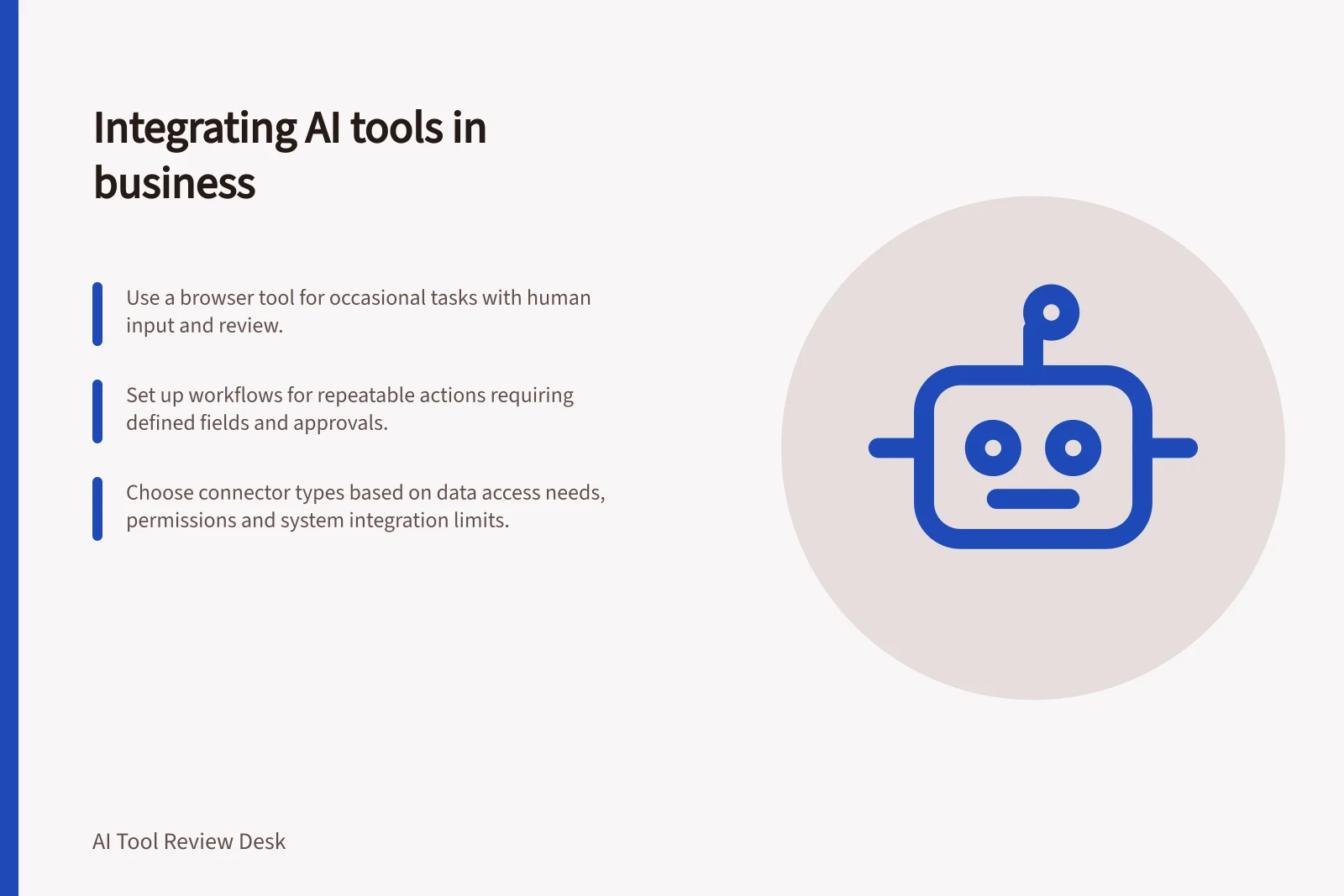
Choose an AI integration by tracing one task from its source to an approved result. A browser tool may suffice when a person supplies the input, checks the response and completes the handover. A connected workflow becomes relevant when another system needs a repeatable trigger or defined fields.
Map the handover
Record the trigger, permitted input, AI action, output, reviewer and destination. For a hypothetical supplier enquiry, an AI step might suggest a category and summary; a staff member would check both before updating the enquiry record.
The integration must preserve the original message and prevent a repeated run from creating a duplicate update.
Decide separately whether the AI may read information, suggest an action or change a record. Each requires different permissions and controls.
Map the Handover Process
- TriggerIdentify the event that starts the AI task (e.g., new supplier enquiry).
- InputDefine permitted input fields and data sources.
- AI ActionSpecify what the AI does—suggest, summarise, classify.
- OutputDetermine format and fields returned by the AI.
- ReviewerAssign a human or automated check before finalisation.
- DestinationConfirm where the result is stored or actioned (e.g., CRM, database).
Choose a route
| Route | When to consider it | Handover to examine |
|---|---|---|
| Browser tool | A person handles occasional work | Transfer and record the approved result |
| Workflow step | A repeatable event should produce fields for later steps | Mapping, approval and failed runs |
| Information connector | Staff need access to approved material in another system | Source permissions, freshness and available content |
| API integration | The business needs its own interface and action controls | Authentication, validation, errors and maintenance |
Routes can coexist. A retrieval connection should not be assumed to update its source. A correctly formatted response can still contain a wrong value.
For Microsoft 365 connectors, the choice also depends on how widely information should be available. Microsoft describes tenant-configured synced connectors for organisation-level indexing, self-serve synced connectors for personally relevant content, and federated connectors for sensitive, dynamic or live data.
Synced connectors index content; federated connectors fetch it when queried.
Connector setup can determine whether a route is feasible. Deployment requires an AI administrator in the Microsoft 365 admin centre; prebuilt synced connectors also require administrator access to the external service. Synced setups need source credentials, environment configuration and permissions to the content being indexed.
Federated connectors require a Microsoft 365 Copilot add-on licence for every user querying the source, an OAuth-based identity configuration with Microsoft Entra ID, and a compatible source that supports the required authentication and query patterns. These requirements make the connector type and intended users practical route criteria, not just technical details.
Before choosing a synced connector, confirm its visibility model in the Microsoft 365 admin centre under Copilot, Connectors and Your Connections. The permission setting can either respect source access lists or make content visible to everyone in the organisation; Microsoft warns that the latter can overshare sensitive content.
Changing permissions after creation is not supported, so an incorrectly configured connection must be recreated.
AI Integration Routes: When to Use Each
- Browser toolFor occasional tasks where a person inputs, reviews and completes the result.
- Workflow stepFor repeatable events needing defined fields for downstream steps; requires approval and error handling.
- Information connectorWhen staff need access to approved content in another system; depends on source permissions and freshness.
- API integrationFor custom interfaces and full control over actions; requires authentication, validation and maintenance.
Microsoft 365 Connector Types: Pros and Cons
- Tenant-configured synced connectorPros: Organisation-wide indexing; consistent access. Cons: Risk of oversharing sensitive data if visibility set to 'everyone'.
- Self-serve synced connectorPros: Personal relevance; user-controlled. Cons: Limited to individual access; not scalable across teams.
- Federated connectorPros: Real-time, dynamic data retrieval; secure query patterns. Cons: Requires Copilot add-on licence per user; complex OAuth setup with Microsoft Entra ID.
Key Requirements for Federated Connectors (Microsoft 365)
- User Licence
- Microsoft 365 Copilot add-on licence required for every user.
- Authentication
- OAuth-based identity configuration via Microsoft Entra ID.
- Source Compatibility
- Must support required authentication and query patterns.
- Permission Change Limitation
- Cannot modify permissions after creation; must recreate if incorrect.
Check the documented limits
A browser workflow still needs a person to move an approved result to the receiving system.
Confirm the documented limits for the exact workflow step before relying on it, especially where an action could change data.
Deployment, available experiences and licences differ by connector type. Do not treat an information connector as a record-update route without checking a specific supported action.
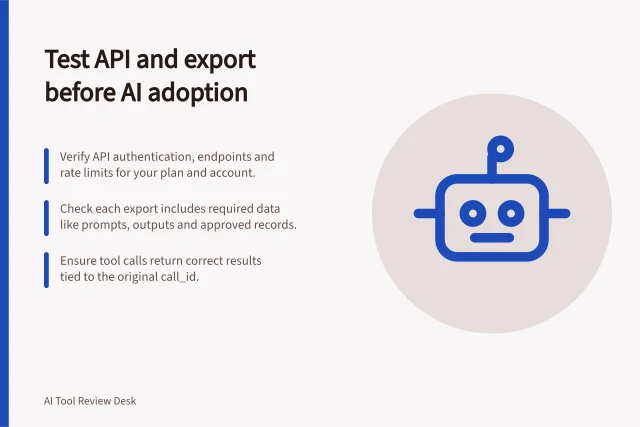
With an OpenAI API integration, the application makes defined functions available to the model. A tool call is a request from the model to use that functionality, such as retrieving account details or issuing a refund. The application handles the request, runs the function and returns the result to the model.
The application must still handle refusals, incomplete responses and incorrect field values. The API supplies building blocks; the business must design its own approval and validation steps.
Check data and failures
Identify the fields sent to each service and who can access inputs and outputs. Use invented or otherwise authorised, non-sensitive material to examine a route. That exercise cannot approve later use of real personal information.
Specify what happens when a source is unavailable, an output field is missing, a request is refused or a destination rejects an update. Keep an owner and the original item for each exception. Before retrying a write, check whether the receiving system can recognise an item it has already processed.
Record the chosen task, accounts, permissions, reviewer, destination and fallback. Examine the complete handover under those conditions, then revisit the decision when the source, plan, permissions or workflow changes.
In this guide
- Browser tools vs business-system integrations by taskCompare a person-led browser handover with a connected AI workflow by tracing the input, review, final action and failure path.
- Checking API and export options before adoptionCheck how an AI tool exchanges task data and how you would retrieve records, workflows and run history before adopting it.
- Testing an AI step inside an existing work processFollow an AI step from the normal trigger to an approved record, including field mapping, review, failed runs and recovery.
- Reviewing the effort needed to replace an AI vendorInventory records, prompts, mappings, permissions and approvals to estimate the work of moving an AI workflow to another vendor.