Writing Tools
AI presentation tools
An AI presentation tool can turn an outline or source file into a draft deck, but the buyer still owns the argument, figures and final format. Compare tools with …
AI presentation tools can start from a file, generate a presentation in a slide app, or create a design template. This guide maps the named options and how to choose between them, using Copilot as the worked example. Copilot can turn an outline or source file into a draft deck, but the buyer still owns the argument, figures and final format.
Decide what the output must be
Separate three needs: a first structure, a visually arranged presentation and an editable handover. An attractive preview can look finished but leave colleagues unable to edit the deck later. State up front whether the presentation will be delivered live, circulated as a file or reused as a template, and which software the team must be able to edit it in.
Product route / Evidence-backed starting point
- Copilot in PowerPoint
- Drafts slides grounded in content from files you reference
- Canva Magic Design
- Canva's help centre covers generating design templates with Magic Design
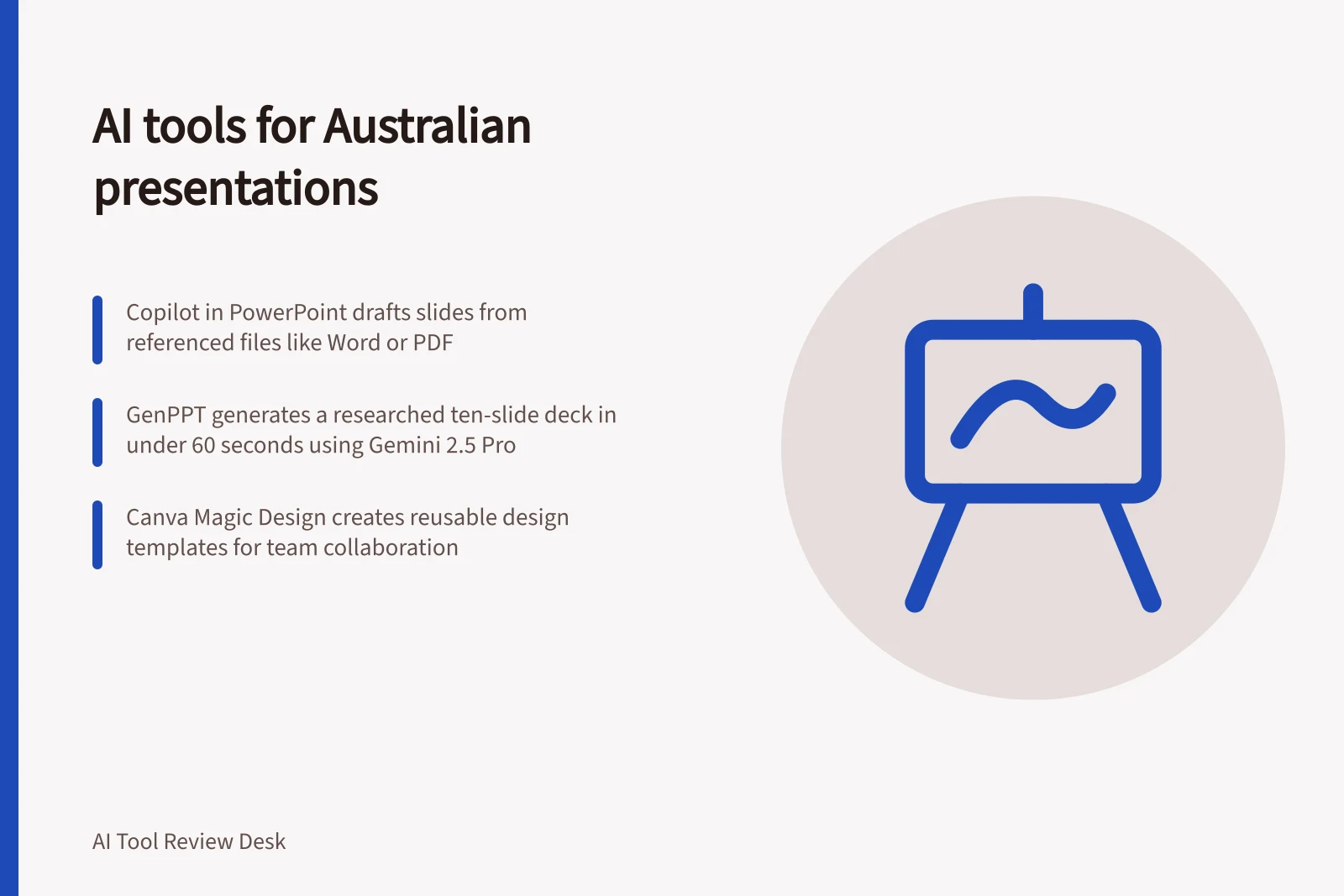
Copilot in PowerPoint drafts slides grounded in referenced files, and can also generate a presentation from a topic, summarise a deck and answer questions about it. Canva Magic Design generates design templates. Choose between these routes based on where your team works and whether you need a file-based draft or a template-led start.
GenPPT researches topics before generating slides and uses models including Gemini 2.5 Pro and Claude Sonnet. The review describes a typical ten-slide deck as generating in under 60 seconds, making it a candidate when a researched starting draft and speed matter. Gamma is also named as an AI presentation generator; check its current workflow and output before deciding whether it fits your brief.
The workflow depends on the tool and the task, so check current requirements in your own account. Every AI presentation generator can produce confident-sounding claims that are subtly wrong. Treat generated figures and statements as draft placeholders and verify them independently before they reach an audience.
Match the tool to the task
Decide whether you need a new presentation, a slide based on a particular file, a summary of an existing deck or help refining slide text. Microsoft lists these as separate Copilot uses, so choose the task before opening the tool.
To create a presentation from an existing document, Microsoft says Copilot supports one file at a time. File choices depend on the licence: Microsoft Copilot for work can use Word or PDF files, including encrypted files; Copilot Pro for home supports a single Word file. Check which option your account has before preparing the brief.
You can also ask Copilot what you want to write about without referencing a file. That route suits a starting point rather than a supplied document. Treat it as a different task from transforming existing material, and review the claims before using them.
For a file-grounded draft in PowerPoint, start with Copilot; if you want a template-led start in Canva, try Magic Design. Consider GenPPT when a researched draft and speed are priorities, and assess Gamma against its current features rather than assuming a particular workflow. Before choosing any paid route, confirm its current Australian availability, plan price, billing terms, GST treatment and included limits with the provider; do not infer them from the product name.
Use Copilot for a source-based slide
In PowerPoint, open a new or existing presentation and select the Copilot button. Describe the slide you want, then select Reference a file or type a forward slash to choose the file; send the request to generate a draft. For best results, Microsoft advises pointing Copilot to the specific section or topic in the referenced file that the slide should cover.
Review the draft before keeping it. You can edit the slide yourself, ask Copilot to rewrite its text or start again with a more specific prompt. If the first request covers too much, narrow the topic rather than assuming a longer prompt will make the result more reliable.
Copilot's document processing has limits. Microsoft says the tool can process a limited number of words per prompt and refers users to separate guidance for longer files. For a long document, specify the relevant topic or section and check that the draft reflects the material you intended it to use.
Check access and refine text
If Copilot is missing or inactive in PowerPoint, Microsoft recommends checking the licence and its requirements for app version, network and privacy settings. Its support information says an internet connection is needed, and availability may depend on organisation settings. Confirm access in the account and app you plan to use; do not assume a Microsoft 365 subscription includes Copilot.
Copilot's Rewrite feature offers three text options: Auto-rewrite, Condense and Make professional. Microsoft describes them as ways to improve clarity, shorten wording or adjust tone. The feature is intended to help fine-tune slide text rather than create an entire presentation from scratch.
Rewrite has specific operating limits: it works on text boxes, not shapes or other objects, and processes the whole text box rather than a selected portion. It also provides one response at a time. If you need to revise only part of a passage, split the text into separate text boxes before using the feature.
Run one fair evaluation
Prepare one short, non-confidential brief with the audience, purpose, slide count and the verified figures you intend to use. Give every tool the same material, then judge each against the job: source-file drafting, working in your chosen slide app, a template-led start or a researched first draft. Keep approval of the claims with the human owner, and choose the tool whose draft your team can edit, reuse and hand over in the software it already uses.
In this guide
- Comparing editable slides with image-only outputsEditable slides let a colleague correct a number or move a chart without recreating the page. An image-only result may preserve appearance but becomes expensive to …
- Testing whether a presentation tool preserves figuresAI presentation tools can make a number look convincing even when they copied it incorrectly or dropped its qualification. Test data fidelity separately from visual appeal.
- Reviewing layout quality with the same source materialA fair layout comparison gives each tool the same content, audience and constraints. Otherwise a tool that received a clearer brief may look better for the wrong reason.
- Checking export quality before choosing a slide toolChoose a slide tool using the file that recipients will actually open. A deck that looks right in the editor can reflow, lose animation or become difficult to revise after export.